Add MCP servers
Give an agent access to the tools that are exposed on an MCP server.
Before you begin
- Follow the Get started guide to set up agentregistry and start the agentregistry daemon.
- Create an agent.
- Create an MCP server.
- Publish an MCP server.
Add MCP server
-
List the MCP servers that are published in agentregistry.
arctl mcp listExample output:
NAME VERSION TYPE PUBLISHED DEPLOYED UPDATED user/my-mcp-server 0.1.0 oci True False 7s -
Add the MCP server to the
myagentagent that you created as part of the before you begin steps. This command opens an interactive dialog in your terminal.arctl agent add-mcp --project-dir myagent -
Go through the interactive dialog.
- Use the arrow keys to go to
3. Registry (pull published MCP server from registry). This option allows you to select an MCP server that you previously published to the registry. Press the return key to continue. - Enter
http://localhost:12121as the registry URL and press the return key. - Select the MCP server that you published to agentregistry and the version you want to use.
- Select
truein thePrefer remote MCP serverdialog. - Enter the following environment variables. By default, the MCP server scaffolding assumes that you want to run the MCP server with
stdio. However, streamable HTTP is required to successfully connect to the MCP server from the agent.Key Value MCP_TRANSPORT_MODEhttpHOST0.0.0.0 - Enter
my-mcp-serveras the MCP server name and press the return key to exit the wizard.
Example output:
✓ Added MCP server 'my-mcp-server' (registry) to agent.yaml - Use the arrow keys to go to
-
Verify that your MCP server tool reference is added to the agent by reviewing the agent definition in the
agent.yamlfile.cat myagent/agent.yamlExample output:
agentName: myagent image: ghcr.io/myagent:latest language: python framework: adk modelProvider: gemini modelName: gemini-2.0-flash description: "" mcpServers: - type: registry name: my-mcp-server env: - MCP_TRANSPORT_MODE=http - HOST=0.0.0.0 registryURL: http://localhost:12121 registryServerName: user/my-mcp-server registryServerVersion: 0.1.0 registryServerPreferRemote: true -
Build the agent image.
arctl agent build myagent -
Run the agent. Wait for the agent dialog to open.
arctl agent run myagent -
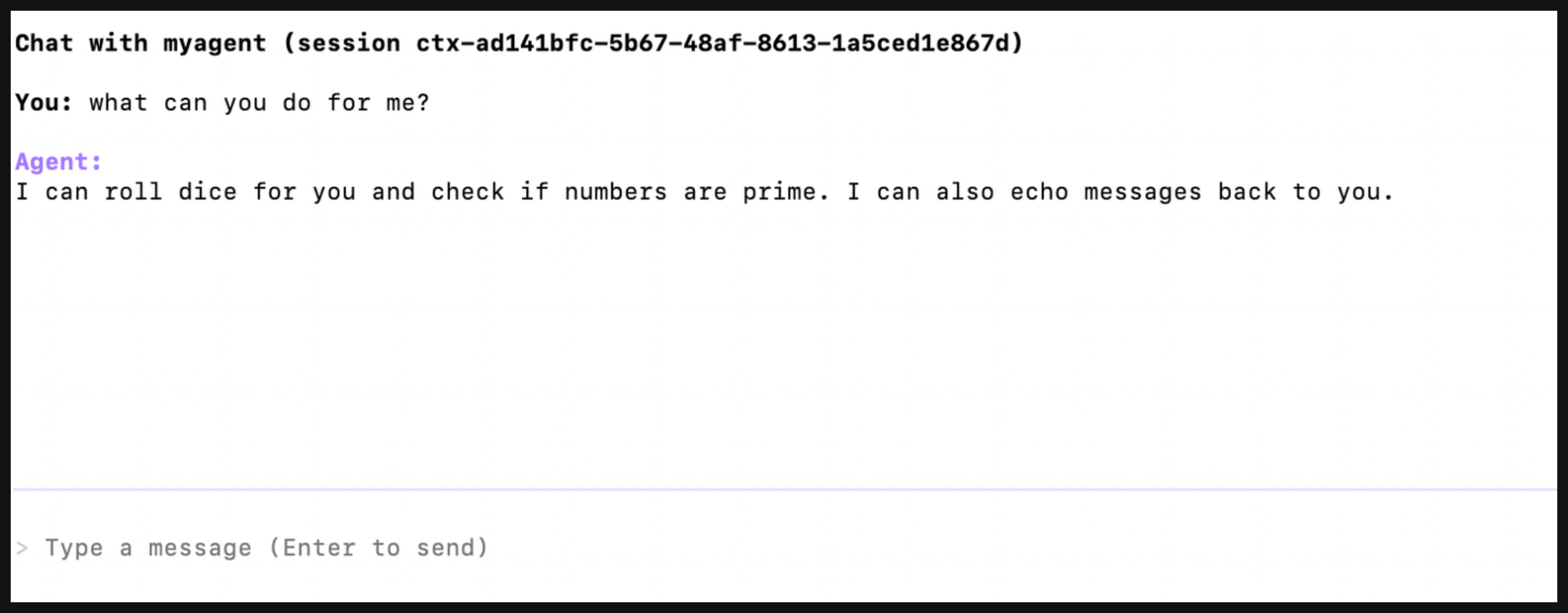
Ask the agent what it can do for you. Verify that the agent offers the ability to roll a dice, check prime numbers, and echo back a message.
-
Try out the echo tool by entering
echo <string>, such asecho hello world. Verify that you see the MCP tool call and that the agent returnshello world.
Cleanup
To remove the MCP server tool, edit the agent.yaml definition and remove the MCP server reference. Then, re-build the agent and run it.